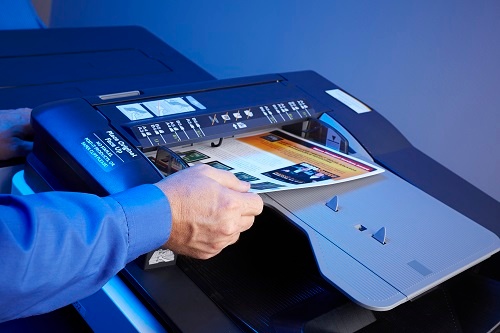
Konica Minolta multifunction printers can perform a variety of tasks within one machine. While this provides the convenience of a one-stop shop for all your employees’ document creation needs, it also creates a need for training. Educating your employees on how to properly use your printing technology will not only make their lives easier, but it will ensure your printers last longer because they are being used appropriately.
Making copies requires just a few simple steps, no matter how big or small your project is. For a recorded training session, view the video at the bottom of this blog.
Getting Started
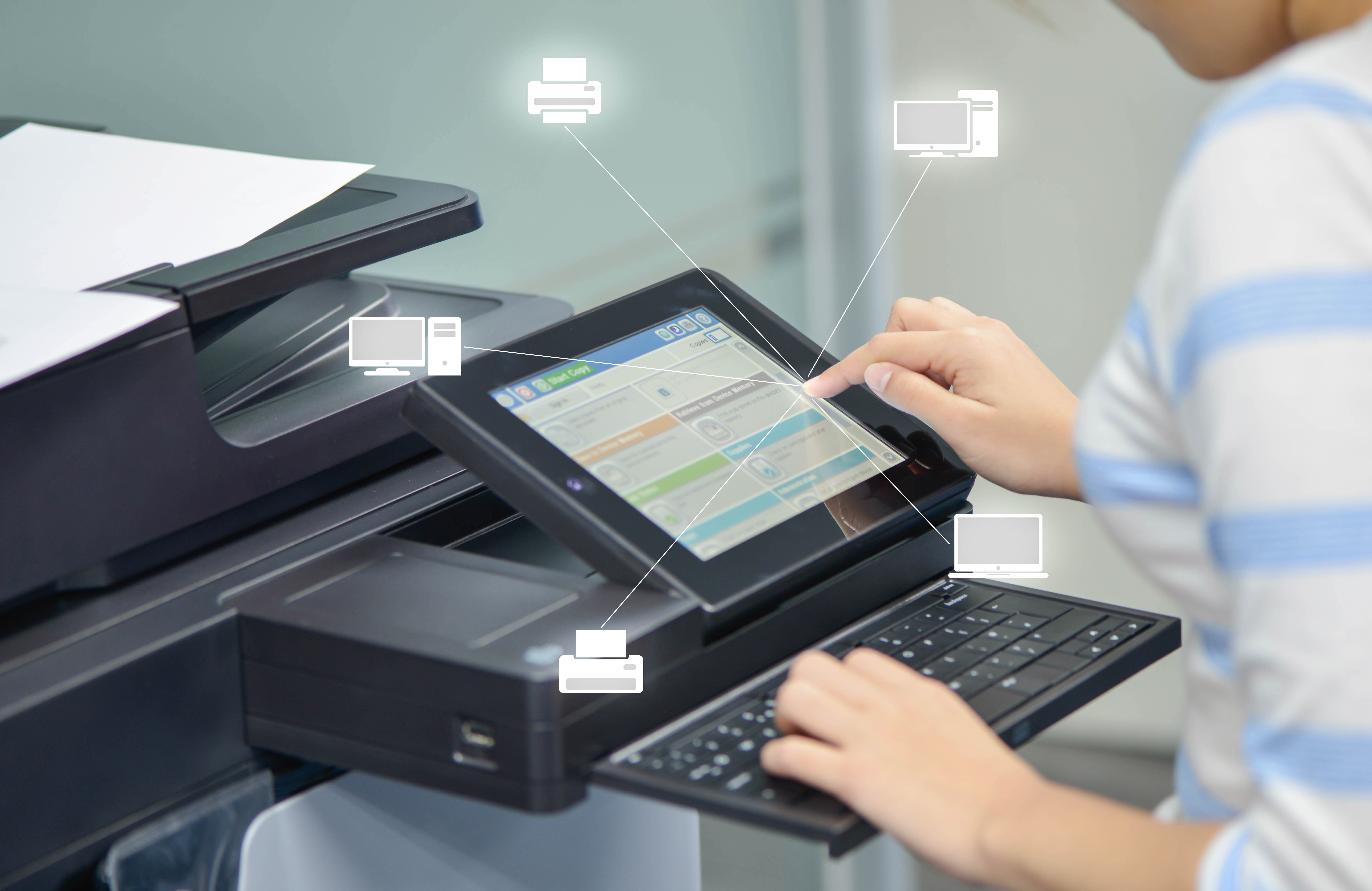
Modern Konica Minolta printers have an LED touchscreen for easy user interface. As you get started, you’ll find the main menu open on the touchscreen. The screen will prompt you to “Select function to use.” You can choose between “Copy,” “Scan/Fax” and “User Box.” Because we are making copies at this time, select “Copy.” This will load the main menu for the printer’s copy mode.
Navigating Copy Mode
When the copy mode screen loads, you should see a number of options appear. Along the bottom you’ll see, on most models, seven buttons to select. Before you make any selections, take a moment to load your documents into the feeder tray on the Konica Minolta printer – remember to remove all staples, post-it notes and paper clips, because they will cause a jam. All documents should be loaded face up. (Note: you can also copy one page at a time by placing your document face down on the glass.) As you do this, you’ll notice that the “Paper” button will flash the term “Auto.” This is just the printer acknowledging that your documents are loaded and ready to copy.
Now it’s time to decide what color scheme you need for your copies. The second button (from left to right) along the bottom is the “Color” button. This will be on “Auto Color” by default, so press the button to open the color mode menu. Here you can select the color scheme you would like for your copy. Options include “Auto Color,” “Full Color” and “Black,” as well as options for two-color and single color copy jobs. Simply selecting the color scheme you want will change the printer’s settings and close the pop-up window.
Advanced Options
If your project is as simple as copying documents exactly as they appear now, you can select the large, green “Start” button that is located just below the touchscreen. However, if you need to make more advanced copies, double-sided for example, you’ll want to select the sixth button (from left to right) that is labeled “Duplex/Combine.”
Selecting this option opens another menu window. Along the left side of the menu you’ll see options for making one-sided to one-sided (default), one-sided to two-sided, two-sided to one-sided, and two-sided to two-sided copies. Once you make a selection, you will be prompted to select output and combine styles.
After making a selection, the output and combine menus are highlighted. Output allows you to indicate positional binding (i.e. top, left or side) and Combine allows you to print more than one page on each page copied (i.e. 2 or 4 pages on one side). If you have no need to bind or combine pages, make sure “Auto” and “OFF” are selected on their respected menus. Those are the default settings, but it never hurts to double check. Select “OK” at the bottom right of the menu screen and you are one step away from making copies.
Number of Copies
The final step is to tell your Konica Minolta Printer how many copies to produce. You have two options at this point. Below the touchscreen is a button labeled “10 Keypad.” This brings up a touchscreen keypad on the LED screen. Select the number of copies you need and hit “OK.” Alternatively, many bizhub models have a sliding touchscreen that reveals a standard keypad. Slide the touchscreen to the left and select the number of copies from the keypad.
When you are done, hit “OK” and/or just press the green “Start” button.
Here is a video that walks you through these instructions, step by step.
Encourage your employees that are unfamiliar with your printer to watch this short video for instruction. You can find more training videos about Konica Minolta printers in the online training section of our website.