Many modern printers now have a built-in troubleshooting feature that makes pinpointing smaller problems much easier. But if you’ve tried that, and your printer isn’t producing the images that it should be capable of, here’s what we’d recommend trying next.
A few simple adjustments could get you the results you’re looking for!
How To Improve Print Quality
Not all printers are created equal. But you might be surprised at what a little troubleshooting can do.
1. Make Sure You’re Using the Best Software 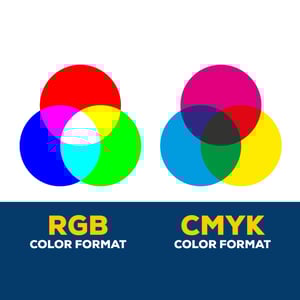
The software you use can make a difference! If you are expecting publisher-quality prints, but you’re using a simple reader application, your results will probably fall short.
The features and settings of your software program can also affect print quality. For example, many software applications generate images in Red-Green-Blue (RGB) format and automatically send them to the printer in this mode.
However, printers create images on paper using Cyan-Magenta-Yellow-Black (CMYK) format.
Although RGB can be converted to CMYK, you might notice some differences between what you’re seeing on your monitor and what your printer can replicate.
2. Check Your Monitor
Speaking of, your monitor itself might be another culprit. Here are a few reasons why what you see on your monitor might not match your print job:
- Age of your monitor
- Resolution of your monitor
- Workspace lighting reflecting on your monitor (natural vs artificial)
Generally speaking, you shouldn’t see dramatic differences between your on-screen image and what’s on the paper. But a little variation here and there is normal.
3. Print From High-Resolution Files
If you are printing a high-quality image, logo, or document, make sure you’re printing from the highest resolution file available.
Often, files get saved in low resolution to decrease the file size. Unfortunately, these images will print poorly because the dots that make up the picture will be too far apart. You may have to reconfigure your printer to use a higher resolution quality to achieve great results.
4. Change Your Printing Language
The two common printing languages used today are Printer Control Language (PCL) and PostScript Language (PS). And believe it or not, these two languages can dramatically impact the quality of the prints your high-quality color printer can produce.
Printer Control Language (PCL)
Your business is probably using at least one printing device that “speaks” PCL. PCL relies on your printer to create portions of the printed data (such as fill areas, underlines, and fonts). There are a few upsides to this language. For starters, it’s supported by various operating systems and allows one printer to work in a number of office environments. It also allows your printer to work faster. But the downside is that you might see some variation from one print to the next.
PostScript Language (PS)
PS is used less often, as it’s optimally designed for use with Macintosh operating systems. And unlike PCL, PS operates independently of the printer — it generates all print data without asking the printer to complete certain areas of print data. Print jobs in PS are generated more slowly than PCL, but create exceptional quality prints that are identical from the first copy to the very last.
5. Check Your Operating System
To recap, PCL works well with various platforms, but PS is optimized only for Macintosh platforms. But there are more ways your operating system could affect print quality.
For example, if you haven’t updated your operating systems in a while, you could find that print quality suffers because related drivers and languages simply cannot communicate with one another. Also, be sure to check for driver updates regularly to keep your printer driver up to date.
6. Poke Around in Your Print Settings
Find the settings menu for your printer — it should allow you to adjust the quality of your printed document.
If you find that your printer is set to something like draft or eco-mode, it will sacrifice print quality to save on ink or toner. Normal or standard is often the default option, but if you’re really looking to maximize quality, there should be a setting called “best” or “high-quality” that will consume more ink but will produce a noticeably better image.
Just don’t forget to revert to the default option when you’re done!
Specific Fixes for Ink Bleeding and Warped Pages
If the ink has bled or the page has warped, your printer may be having an issue with ink over-saturation. You can solve this issue easily by increasing the print speed. If the pages appear faded, you can increase ink saturation by decreasing the print speed or increasing the quality setting.
7. Use High Quality Print Paper
To the casual eye, one ream of paper looks much like another. But cheap paper is cheap for a reason. If you're seeing flecks of toner, blurred print, or fading, try switching to a higher-quality paper.
Also, using a heavier paper stock will produce different results than standard-weight paper, which will also be different than when using high-quality photo paper. Many printers are capable of handling a variety of different types of paper, but the quality may vary from one to the next.
Another thing to keep in mind is that paper and printers go hand-in-hand; there are certain printers that are optimized to create high-quality prints only on specific paper stocks. Determine which paper stock is ideal for use with your printer first, then select the option that best suits your project.
8. Maintain Your Printer
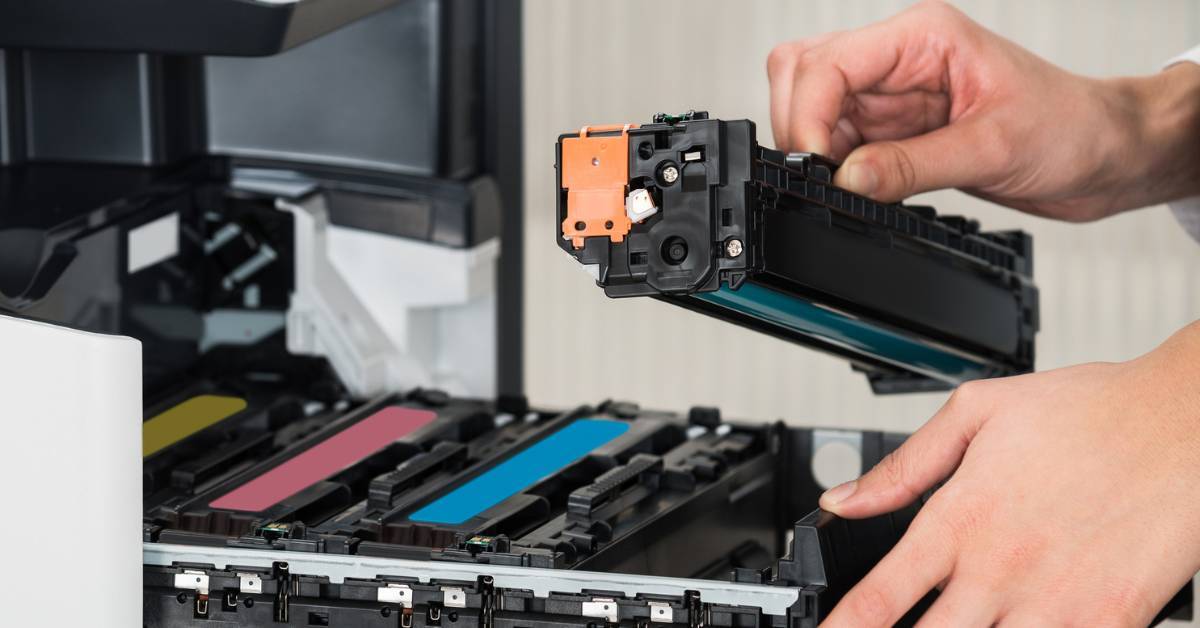
Be sure to perform regular printer maintenance as outlined in your manufacturer's guidelines. All of the printer's major internal parts need to be serviced or replaced periodically.
A printer's heads, nozzles, and other components can become dirty or clogged, which could show up as white lines running across your page. Your printer may have a head-cleaning feature available through your device software, located on your computer or from the control panel on the printer itself. Be sure to use proper cleaning techniques when cleaning any components on your printer, as inappropriate cleaning processes or substances can easily cause damage.
Fixing Alignment Issues
Misalignment of your cartridges may occur over time. Fortunately, your alignment can be adjusted on most printers using an automated system that you can access through the printer's control panel. Each printer will have a different process for this — for example, on most HP devices, you can access this function in the Setup menu. Check your user guide or search online for specific instructions for your device.
9. Don’t Skimp on Supplies
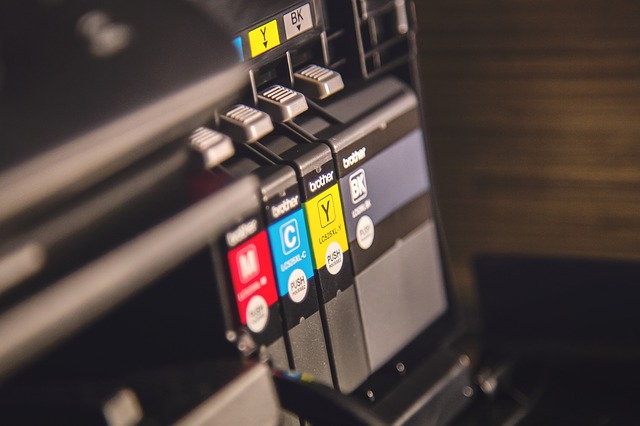
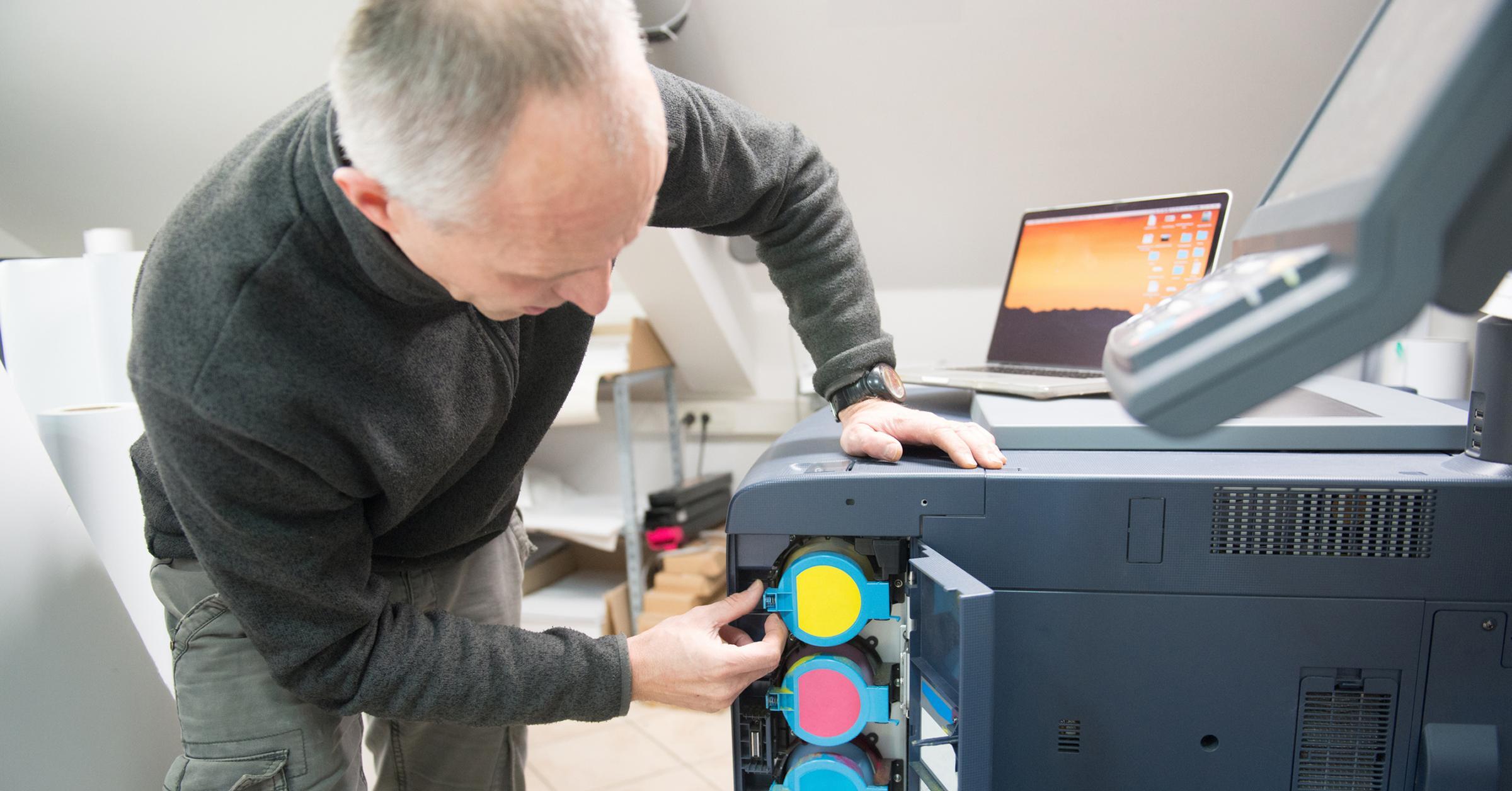
It may be tempting to try to save money on ink and toner, but it's always best to use the toner recommended by the manufacturer. Cartridges, inks, and toners are highly sophisticated. Toner cartridges can be damaged easily, so follow the handling instructions provided by the manufacturer and always store them on a level surface. They should be unpackaged carefully and handled as little as possible.
10. Rethink Your Printer’s Location
Believe it or not, printers may produce poor-quality printing if they are exposed to too much heat. So don't place your printers in a high-temperature area or near other devices that produce excess heat. In addition, keep them away from windows, where heat and humidity can be high.
When an Expert Is Needed To Resolve Ongoing Print Quality Issues
You know your business. If your printers are currently getting all of the maintenance they need in-house, and you don’t see a lot of print quality issues, then a couple of troubleshooting tips from time to time might do the trick.
But if you’ve read this far, that’s probably not the situation.
If print quality is important to your business on a regular basis, but it’s also a frequent pain point, it might be best to consult a managed print provider. Most providers will offer a complimentary print assessment to help you optimize your print environment.
If you have us out, we’ll also ask some detailed questions about what you’d like your printers to do for you and what’s working well and not so well. We’ll also investigate your current print security and help you reduce your print costs in the process. We’re typically able to save clients up to 30% on print costs with our custom recommendations.
To learn a bit more about the service and how we work, click the link below!