Device Lifecycle Management 101
Simplify Windows 11 migration and more.
Windows 10 is a very popular operating system! And for many of us, it feels like its upcoming end of support date is coming a bit too soon. But Windows 10 was launched back in 2015. It’s had a good, long run, and ten years is the typical lifecycle for a Windows operating system.
In this guide, we’ll explore everything you need to know about Windows 10’s end of support (EOS) date and how organizations can simplify their Windows 11 migration.
Want a PDF version of this information to reference and share?

What Is Windows 10 EOS?
It’s important to understand that Windows 10’s end of support (EOS) date — October 14th, 2025 — is the date that Microsoft will stop providing free updates, technical assistance, or security fixes for this operating system.
The key word here is “free.” Microsoft does offer an Extended Security Updates (ESU) program for Windows 10 where you can still receive important security updates. However, at $61 USD per device for the first year, it’s not cheap. So essentially, you’d be paying a premium to keep an outdated device that probably isn’t worth keeping.
We’ll explore this topic in more detail later in the guide.
Common Questions About Windows 10 EOS
1. Will My Windows 10 Devices Stop Working?
Windows 10 and Windows 10 devices won’t suddenly stop working after October 14th, 2025. However, unless you purchase Microsoft’s extended security program, continuing to use Windows 10 after October 14th increases your risk of a cybersecurity incident or a disruption.
2. Is a Windows 11 Upgrade Mandatory?
Migrating to Windows 11 isn’t mandatory. However, continuing to use Windows 10 after October 14th isn’t recommended.
3. Will Windows 11 Be a Free Upgrade?
For compatible devices and apps that are already running Windows 10, the update is actually free! However, older devices and legacy software that aren’t compatible with the new operating system will need to be replaced in order to avoid cybersecurity risks, compatibility issues, and disruptions.
4. Will My Apps Stop Working?
Most cloud tools will continue to work, but depending on the app, its design, and its age, the developer may also start to phase out support. However, if you’re running legacy software, you may start to experience compatibility issues and disruptions after migrating to Windows 11.
5. Is Windows 10 Also Going to End of Life?
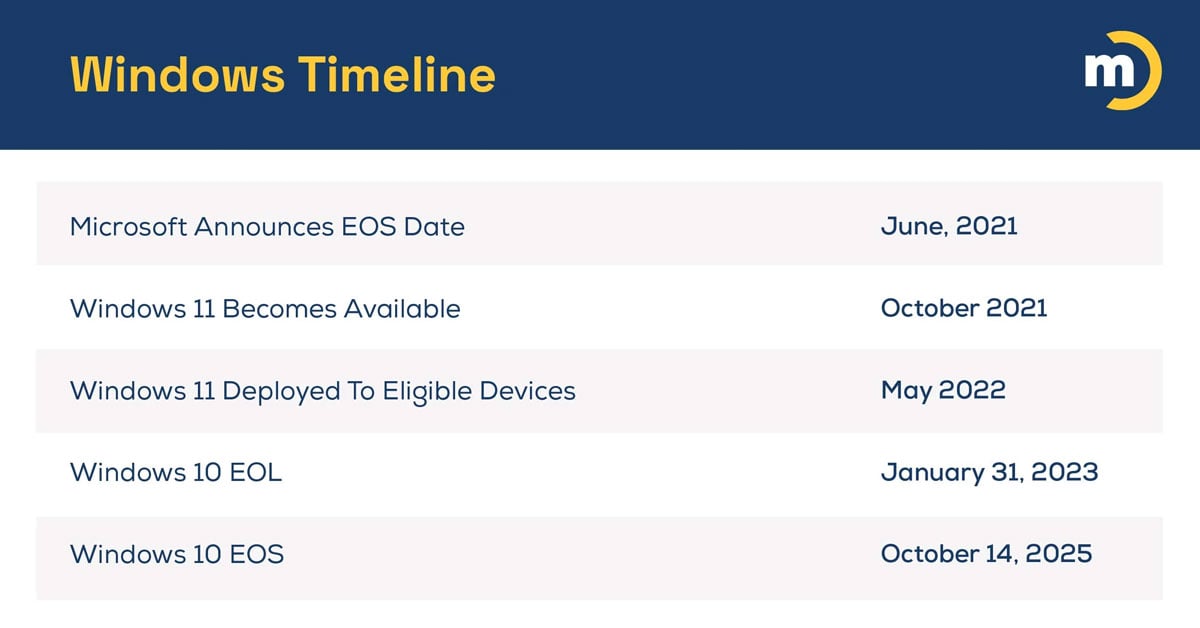
Windows 10 actually already did! It reached its end of life (EOL) date on January 31, 2023.
6. Will Windows 10 End of Life or End of Support Be Extended?
In the past, Microsoft sometimes extended support for more popular operating systems or enterprise customers. However, this is not expected for Windows 10’s EOS date because Windows 11 has been available since 2021, and Windows 11 has important security enhancements.
7. What’s Windows 10 End of Life vs. End of Support?
End of life (EOL) and EOS dates are often different. EOL refers to when a product is no longer being sold. EOS refers to when a product is no longer being supported.
In the case of Windows 10, here is the timeline:
 Need help with the upcoming end of support? We've got you! Get planning and personalized support with Marco here.
8. Is There Any Significance To the October 14th Date?
There actually is, although we don’t know that Microsoft purposefully planned its EOS date to coincide.
October 14th, 2025 is Ada Lovelace Day! Ada Lovelace created the first computer algorithm, and she is often referred to as the first computer programmer. Ada Lovelace Day — celebrated on the 2nd Tuesday of October — is an occasion to recognize not just Ada Lovelace, but also the many key contributions of women in STEM fields.
Meeting Windows 11 System Requirements

PCs that were purchased in 2017 or earlier are probably not compatible with Windows 11. But a device’s age isn’t the only determining factor. Some newer but lower-end devices may also be incompatible.
Besides age, here are a few telltale signs that you will probably need to update a device:
-
Its processor is outdated, predating Intel’s 8th-generation
-
It has an outdated TPM configuration (possible in some PCs from 2017-2019)
-
Its motherboard uses an older chipset
Windows 11 has additional hardware and feature-specific requirements. However, there is an easier way to tell if a PC is compatible with the new operating system, and that’s to use Microsoft’s online tool.
Access an Online Windows 11 Compatibility Checker
Microsoft has a tool — the PC Health Check app — that makes it easy to see whether your PC is compatible with Windows 11.
You can use it online or download it. You can also access more advanced instructions for using the app on Microsoft’s website.
Is Windows 11 Better Than Windows 10?
Windows 10 simply wasn’t designed for the world we live in today, where cloud computing tools, AI, and widespread cybersecurity threats have altered day-to-day work.
While Windows 10 has been very popular, Windows 11 represents a big step forward in ways that business leaders, IT personnel, and individual users can all enjoy.
So let’s explore those next!

What Are the Benefits of Windows 11?
While Windows 11 has a number of advantages for PC gamers, in this guide, we’ll focus on what it offers organizations.
1. An Improved (Yet Familiar) User Interface
Don’t worry! Microsoft learned from Windows 8, and Windows 11’s core functions aren’t that different from Windows 10. It looks a little more modern with some new icons, a new start menu, and a centered taskbar.
Multitaskers have also enjoyed a new feature called snap layouts, which allow you to better organize your various windows and apps to maximize efficiency throughout the day.
It also offers more Fluent Emojis — Microsoft’s own emoji creations, including a depiction of the reviled, over-eager virtual assistant Clippy (b. 1996 - d. 2007). See? Who says tech-minded people don’t have a sense of humor
2. Better Virtual Desktops
Windows 11 gives virtual desktops a nice boost, making it easier for users to create different workspaces and reduce screen clutter.
3. Easier Access to Microsoft Teams Chat
Video conferencing wasn’t all that popular before 2020. But in just two years, virtual meetings grew from 48% to 77%. Now, 80% of workers said they rely on video conferencing platforms for 1:1 meetings. Windows 11 has adapted to this change by integrating Microsoft Teams chat into its taskbar.
4. News and Interests Gets a Replacement
Some users found Windows 10’s News and Interests to be intrusive and could cause some performance issues. Windows 11 has replaced this feature, as well as Live Tiles, with Widgets. They allow more customizations, have fewer performance issues, and still make it easy for users to stay informed.
5. Stronger Cybersecurity
Windows 11’s new device requirements are due, in part, to its security enhancements. Windows 11 uses hardware-based security features (TPM 2.0, Secure Boot, and VBS) to offer better protection from malware and other cyber threats.
Windows Hello offers a simpler and more secure sign-in option, using a PIN or facial recognition instead of having to enter your password.
Finally, Windows 11 incorporates advanced AI algorithms to identify patterns and anomalies that could indicate a threat, which brings us to our next point …
6. More AI-Friendly
If you like, you can enable voice commands on Windows 11. And if you have Microsoft Copilot, it can easily access data from the rest of your Microsoft productivity suite to help you with all kinds of day-to-day tasks. Windows 11 also provides AI-driven insights to offer a personalized user experience.
As AI technology continues to mature, Microsoft intends to integrate more capabilities into its new platform.
8. Improved Performance
DirectStorage helps reduce loading times for more robust apps and games. Windows 11 will also offer energy recommendations to help your device reduce its power consumption.
9. You Can Find Files Faster
Windows search now understands more natural language, so you can find files by describing what's in them, not just by remembering their exact names.
For example, you can search for "budget spreadsheet from last March" instead of trying to remember if you named the file "March2024_Budget" or "Q1_Financials".
So … Is It Worth It To Upgrade to Windows 11?
For all of the benefits we’ve outlined above, as well as the risks that go along with using Windows 10 after October 14th, it’s worth it to make the switch.
Because Windows 11 harnesses the power of AI, it also might be a good time to take a look at your Microsoft subscriptions. You might be able to get significantly more ROI. For example, if onboarding and offboarding employees takes up a significant amount of your IT team’s time, we have a new blog for you!
What Happens if You Don't Upgrade to Windows 11?

Windows 11 has a lot to offer. But unlike previous operating system updates, we understand that this one may be coming at a bad time for a lot of businesses. If you’re hoping to postpone your migration, here’s what you should know.
Can You Still Use Windows 10 After 2025?
You can continue to use Windows 10 after 2025, but running unsupported software is risky, and those risks get bigger the longer you continue to use them.
In this case, continuing to use Windows 10 could put your business at a higher risk for a serious cybersecurity incident. If you currently have cyber insurance, failing to migrate may invalidate your policy. And if your business is highly regulated, you risk meeting compliance.
However, we understand that many organizations are working with a limited budget. And that means they may need to spread out the cost of new devices and tools.
Why Should You Plan Now?
Those organizations that start planning for October 14th early will have an easier time migrating for a few reasons. Their budgets can absorb costs more gradually, and they can make more strategic decisions about what tools need to be updated vs. reimagined.
Cloud computing solutions evolve quickly, and we find that many organizations suffer from what’s known as “tool sprawl” or “tool creep,” where they have a number of overlapping tools that could be replaced by fewer but more powerful ones to save quite a bit of money.
And if your budget won’t allow you to complete your migration before October 14th, 2025, you’ll have more time to think through what devices and tools contain sensitive data or are vital to critical workflows, and, therefore, still minimize your risks
What Are Your Options To Secure Windows 10 After October 14th?
We touched on this before — Microsoft has an Extended Security Updates (ESU) program for Windows 10, where they will still provide critical security updates. But it comes with a high price tag at $61 per device for just 1 year of updates. Other software companies — including Opatch — have offered security patches for Windows 10. Their solution only costs $27/year. However, you’d be putting quite a bit of trust in a company that doesn’t have Microsoft’s credibility — or its cybersecurity budget.
Investing in new tools and devices can be expensive, but in the long run, continuing to use outdated technology is very risky, and it also comes with higher maintenance costs.
Pro tip: We are advising our clients who are on a tight budget to prioritize updating critical devices and tools first rather than paying a premium for holding on to outdated tech, or paying a company that might not be able to deliver on its promises.
How Do You Migrate to Windows 11?
For some organizations that have adopted quite a few cloud solutions and don’t use a lot of hardware, migrating to Windows 11 could be fairly simple. You may just need to buy and set up a few new devices.
However, organizations that have more complex IT infrastructure, use legacy software, or haven’t invested much time into IT lifecycle management may have a more arduous trek ahead of them.
If any of those descriptions fit your organization, before you migrate to Windows 11, here’s what you’ll need to assess:
-
App compatibility
-
How you’ll migrate user data
-
Any necessary security policy updates
-
New training requirements
-
New hardware and software costs
IT lifecycle management is underrated (by a mile), but when it comes to making significant tech updates like this one, it can save you quite a bit of time and help you save money on your infrastructure.
Your Step-by-Step Guide To Upgrade From Windows 10 to 11
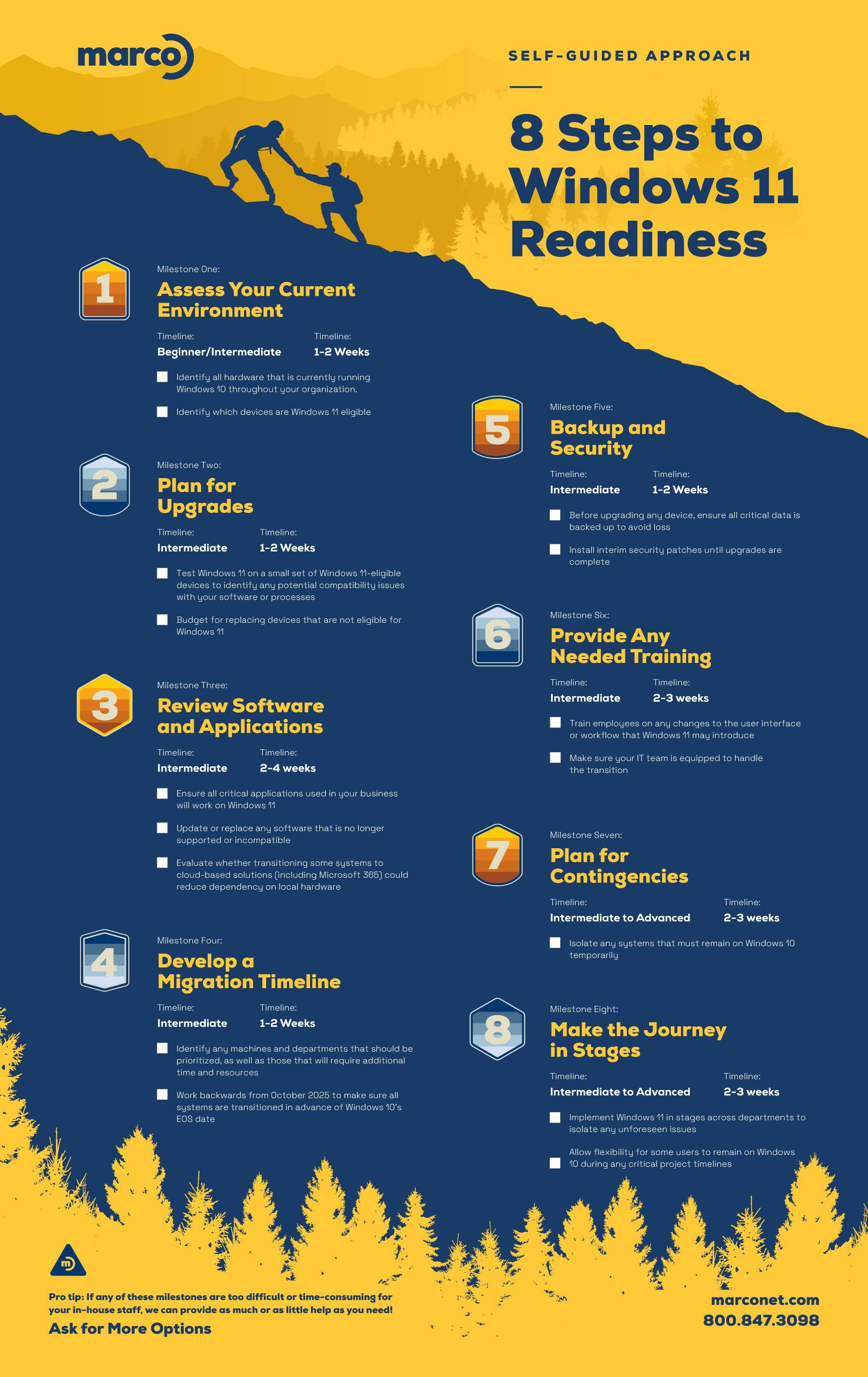
Unless you are highly confident that your apps and devices are compatible with Windows 11, a little planning will go a long way.
Here is our 8-step method to make sure your migration goes smoothly:
Want a downloadable copy of this approach? Click here to download a PDF.
What Could Go Wrong?
Here are some problems that a business might experience if they rush their Windows 11 migration:
-
Compatibility issues with existing software and hardware
-
Downtime
-
Security vulnerabilities when data is in transition
-
Productivity dips if users struggle to adapt to the new interface and features
Pro tips:
-
When you evaluate your equipment for compatibility, don’t forget about servers, networking equipment, printers, and other peripherals.
-
Any custom-built software and industry-specific applications may need to be modified to function optimally on Windows 11!
How To Simplify Device Lifecycle Management Moving Forward
The steps we outlined above can be complicated and time-consuming. But they actually don’t have to be.
Microsoft offers a lot of options to help automate this task with the help of advanced software.
Take Advantage of Microsoft Tools
Microsoft Intune can handle everything from setting up new devices automatically to keeping them secure and up-to-date with the latest apps and settings. And you can do it all from one central cloud dashboard.
When devices reach the end of their life cycle, Intune also makes it simple to securely remove company data and retire them. Intune also includes a few additional tools, including Autopilot and Configuration Manager.
Windows Autopilot can automate the device setup process from start to finish. All your staff would need to do is sign in with their work account and everything else happens automatically. All necessary apps, settings, and security policies are also automatically configured based on their role.
Microsoft Configuration Manager is a comprehensive solution that can help you deploy a new operating system (like Windows 11), distribute software, and track your assets.
Pro tip: When we help our clients migrate to Windows 11, we also use Microsoft Entra ID to verify app compatibility.
If your license doesn’t include Intune, and you’re not sure whether adding it would be worth it, we’re happy to take a look at no cost to you. We also can help you simplify your Microsoft license management going forward — for free. 
The Easy Route: Finding a Trusted Windows 11 Update Assistant
Organizations with a tight budget, a limited amount of time, remote employees, or an understaffed IT team — or organizations that simply want to focus on other things — can offload some or all of their Windows 11 and device lifecycle management responsibilities.
As a certified Microsoft Solutions Partner, we are highly skilled at securing Microsoft tools and providing simplified license management.
Over the past two years, we’ve also added a few new offerings to help our clients migrate to Windows 11. Not all organizations will need the same level of support. But here are just a few examples of what we’re offering:
-
15% off first-time purchases of M365 Business Premium (through April 1st, 2025)
-
An itemized list of the tools and apps that need to be updated
-
Custom recommendations for app consolidation
-
Automated device lifecycle management tools
-
Simplified device setup, configuration, and delivery
-
Insider rates for AI-powered HP laptops
-
Comprehensive migration planning
-
Assistance with the migration itself
If you know a little bit about how we work, you might have guessed this already. Yes, we have been thinking about how we could help our clients make this migration simpler ever since Microsoft first announced Windows 10’s EOS date back in 2021. That’s a huge part of our role as technology partners, and we do take that role seriously.
Furthermore, Fully Managed IT — and even our scaled-back Microsoft-focused version — just aren’t the right fit for every business. We get it! Many internal IT teams are perfectly capable of managing their day-to-day tasks but don’t do large migrations like these often. Some IT projects are okay to postpone, but this one simply isn’t. Click the link below to view your options!