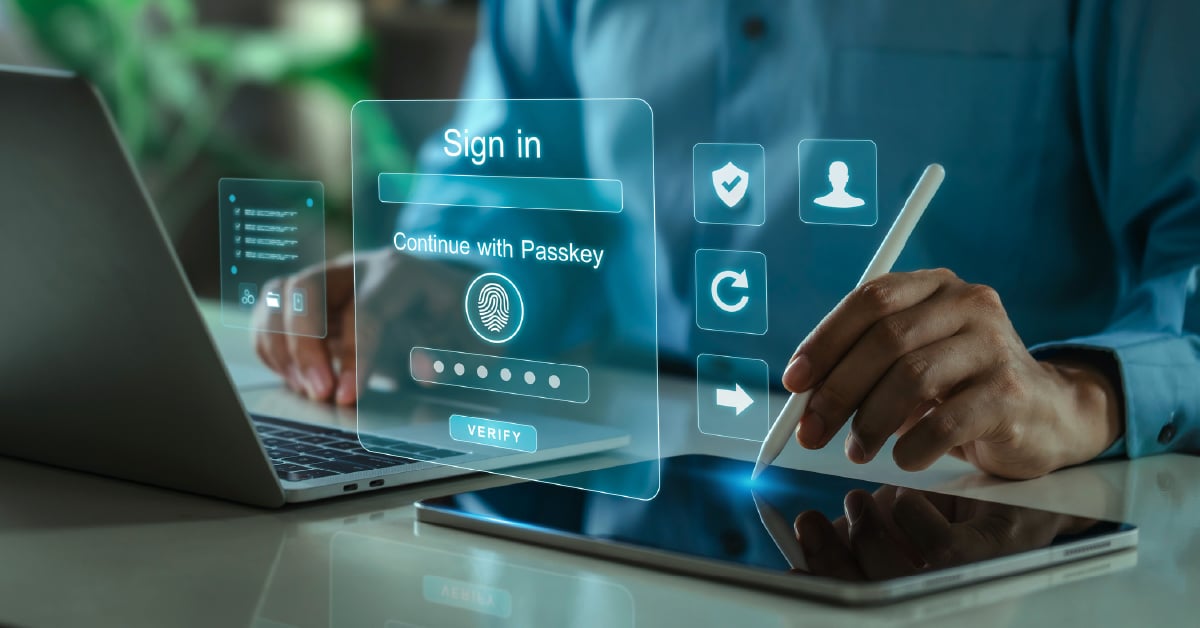
Passwords alone haven't been enough to protect business accounts for years. Most IT professionals know this. Most business owners have heard it. And yet credential theft remains one of the most common ways attackers get into company systems — often because MFA wasn't in place, or because the MFA that was in place wasn't strong enough.
This guide covers what multi-factor authentication is, why the type of MFA you choose matters more than ever, and what a practical implementation looks like for a mid-sized business in 2026.
What Is Multi-Factor Authentication?
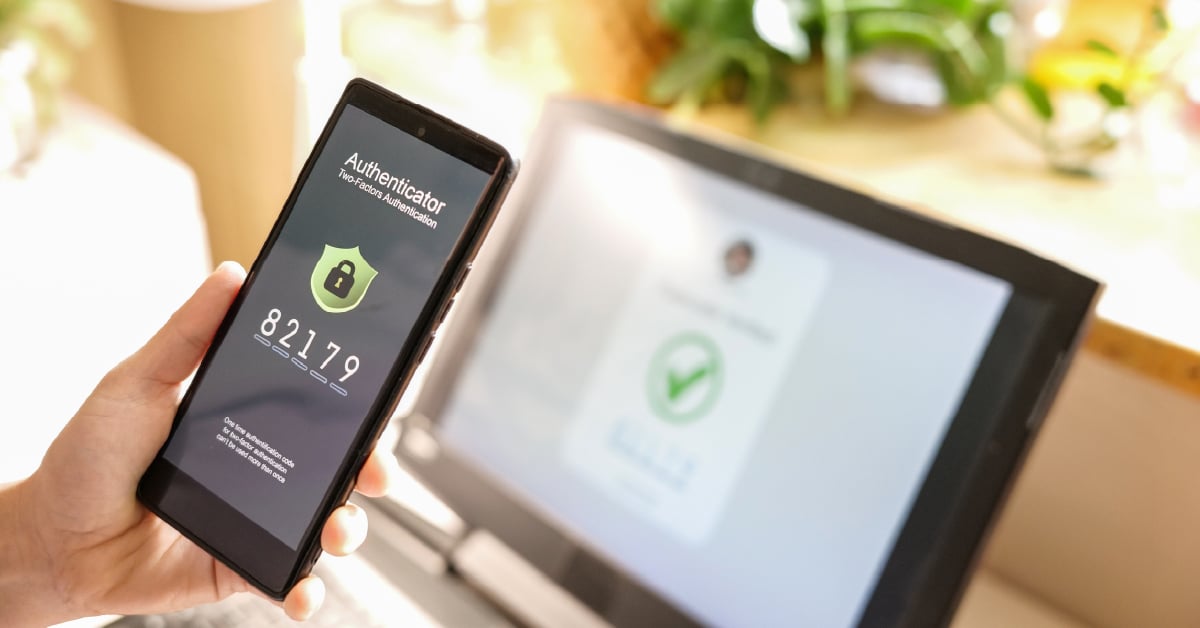
Multi-factor authentication (MFA) is exactly what it sounds like: more than one way to prove you are who you say you are before getting access to an account or system.
There are three categories of multifactor authentication:
- Something you know — a password, PIN, or security question answer
- Something you have — a smartphone, hardware security key, or authenticator app
- Something you are — a fingerprint, face scan, or other biometric identifier
The strongest MFA implementations combine factors from two or more of these categories. Combining two "something you know" factors — say, a password and a security question — doesn't meet the bar, because both can be compromised through the same attack.
Why Passwords Alone Aren't Enough
Stolen credentials are involved in a significant share of data breaches year after year. Attackers acquire them through phishing, data breaches at third-party sites, brute force attacks, and malware — and they're often reused across multiple accounts.
The problem isn't just weak passwords!
Even a complex, unique password can end up in the wrong hands through no fault of the employee who set it. MFA creates a second, much stronger barrier: Even if an attacker obtains the password, they still can't log in without the second factor.
Enabling MFA makes you 99% less likely to be hacked. That's a remarkable number — and it holds for the attacks that make up the vast majority of attempts against business accounts. The nuance, which the rest of this post gets into, is that not all MFAs deliver that protection equally, and attackers have built specific techniques to exploit the weaker forms.
MFA isn’t perfect — no single tool is. However, enabling it makes accounts significantly harder to compromise.
Multi-Factor Authentication Examples: Not All MFA Is Created Equal
This is the part of the conversation many businesses miss. Enabling MFA is a meaningful step. But the type of MFA you deploy determines how much protection you actually have.
SMS and Email Codes
Text or email one-time codes are the most familiar form of MFA — and the weakest. SMS codes are vulnerable to SIM swapping, where attackers convince a carrier to transfer a phone number to a device they control. They're also susceptible to real-time phishing proxies that capture the code the moment a user types it and immediately relay it to the legitimate site.
They're better than nothing. But for any account holding sensitive business data, they're not the best long-term answer.
Authenticator Apps (TOTP)
Time-based one-time password (TOTP) apps like Microsoft Authenticator or Google Authenticator generate a new code every 30 seconds. They're not susceptible to SIM swapping, which is a meaningful improvement. The limitation: Codes are still typed into a browser, which means a well-executed phishing proxy can capture and relay them before they expire.
For most businesses, authenticator apps represent a practical middle ground — a significant step up from SMS, and widely supported across business applications.
Push Notifications
Push-based MFA prompts users to approve or deny a login attempt on their phone. The user experience is smooth, which is part of why it's popular. The vulnerability is MFA fatigue: Attackers who have a user's password can trigger repeated approval prompts, sometimes sending dozens in a row until a frustrated or distracted user taps "approve." MFA fatigue attacks appeared in 14% of security incidents recently analyzed — making it the dominant bypass method.
Number matching (where the user must enter a specific number shown on the login screen, rather than just tapping approve) is a meaningful improvement to push-based MFA and is now supported in Microsoft Authenticator.
Hardware Security Keys
Physical security keys — such as YubiKeys — represent the most phishing-resistant MFA available. Authentication is cryptographically bound to a specific domain. In other words, the key will not respond to a fake login page, even a convincing one, because the domain doesn't match. There's no code to steal and no prompt to fatigue.
Biometrics
Fingerprint and facial recognition work well as a factor when paired with another method. They're device-specific, which limits their portability, and biometric data requires careful handling from a privacy and compliance standpoint.
As part of a layered approach, they add meaningful protection.
Can MFA Be Hacked?
Short answer? Unfortunately, yes. However, understanding what attackers are doing actually helps frame why MFA strength matters.
These three common techniques are worth knowing:
Adversary-in-the-Middle (AiTM) Attacks
In this attack, a phishing-as-a-service toolkit sits between the user and a legitimate login page, capturing credentials and MFA codes in real time, then immediately using them to generate a valid session token. The attacker steals the session cookie and retains access even after the MFA prompt has been satisfied.
79% of the business email compromise incidents that were recently investigated involved victims who had correctly implemented MFA — but were compromised through this method.
MFA Fatigue
This attack takes advantage of repeated push notification bombardment — sometimes automated — until a user finally slips up and approves a fraudulent request.
The technique exploits human behavior, not a flaw in the technology.
SIM Swapping
Attackers impersonate a victim with a cellular carrier and transfer the phone number to a device they control, then receive any SMS-based MFA codes sent to that number so they can bypass MFA.
The takeaway isn't that MFA is ineffective — it remains one of the most important security controls a business can deploy. The takeaway is that the type of MFA matters, and that MFA alone isn't a substitute for a layered security posture.
How To Implement MFA in Your Business
Knowing you need MFA and actually rolling it out are two different things. The businesses that struggle with implementation usually share a common mistake: They try to turn everything on at once. That approach tends to generate lockouts, workarounds, and pressure from frustrated employees to weaken the controls — which defeats the purpose. A phased rollout, starting with your highest-risk access points, is more likely to stick.
1. Start With an Inventory
Before you can implement MFA, you need to know where identities authenticate across your environment. Email, cloud portals, remote access tools, line-of-business applications, service accounts — some of these will have MFA available and some won't.
The inventory doesn't need to be perfect to be useful. It just needs to surface the paths attackers are most likely to use and flag any access points that will break first if MFA is applied without preparation.
If you're not sure what your full technology environment looks like, a cybersecurity assessment may be the most practical way to find out — it surfaces gaps like missing MFA coverage alongside everything else that's at risk.
2. Prioritize by Risk
Not every system carries the same exposure. A practical rollout sequence:
Start here — highest priority:
- Email (Microsoft 365, Google Workspace)
- Remote access tools (VPN, RDP, remote desktop)
- Administrative and privileged accounts
- Financial systems and banking access
- Cloud platforms (Azure, AWS, M365 admin portals)
Expand from there:
- Line-of-business applications
- HR and payroll systems
- Any system storing customer data, health records, or financial information
For most businesses, locking down email and remote access in the first phase covers the majority of the attack surface. NIST recommends this kind of systematic approach — completing an inventory of all systems before building a rollout plan — rather than a simultaneous deployment.
3. Choose the Right Method for Each Access Point
Not every system needs a hardware key, and not every user needs the same experience. A practical framework: authenticator apps with number matching for most employees, hardware security keys for administrators and anyone with access to sensitive financial or customer data, and biometrics where device-level authentication makes sense. Reserve your most friction-heavy methods for your highest-risk accounts — and make sure lower-risk logins stay easy enough that employees don't look for ways around them.
4. Communicate Before You Deploy
MFA rollouts fail more often from the human side than the technical side. Employees who don't understand why MFA is being added — or who find the new process confusing — will either push back or, worse, comply poorly enough to create new vulnerabilities. Security awareness training that explains the reasoning, not just the mechanics, makes a measurable difference in adoption. It also reduces the risk of employees inadvertently approving fraudulent push notifications because they've been conditioned to tap through prompts quickly.
MFA and Cyber Insurance
Cyber insurance carriers have increasingly made MFA a requirement — not a recommendation. Policies that don't see MFA deployed on email, remote access, and administrative accounts may be denied coverage or rated as higher risk.
If you're renewing a cyber insurance policy or evaluating one for the first time, verifying your MFA posture against a carrier's requirements is worth doing before the application, not after.
Common Implementation Challenges
Even when businesses commit to MFA, the rollout often hits predictable friction points. Here's what to expect — and how to get ahead of it.
User Friction
Employees who find MFA inconvenient will find workarounds. Choosing a method that's easy to use — authenticator apps for most users, hardware keys for high-privilege accounts — reduces resistance.
MFA can be annoying! However, it takes just a few seconds. We find that when employees understand the risks, they’re much more likely to put up with a 2-second annoyance every now and then.
Shared Accounts
Accounts shared by multiple users are among the hardest to protect with MFA. 61% of organizations had at least one root account without MFA enabled — frequently because it was shared.
Where possible, having individual accounts and additional controls where shared accounts can't be avoided are the right approach.
Coverage Gaps
When MFA is deployed on some systems, but not others, it leaves exposure. We touched on this earlier, but this is why having a comprehensive inventory — knowing which systems offer MFA and which don't — is the prerequisite to a complete rollout.
How To Evaluate Your Current MFA Solutions
If you're not sure where your MFA posture stands today, the right first step is understanding what you have and what you're missing — across your Microsoft environment, your remote access points, and your most sensitive systems.
If you’re not sure, our free Cyber Health Quiz takes about five minutes and gives you a much clearer picture of your organization's entire risk profile — including where your authentication gaps are — along with personalized recommendations on where to focus first.